Google
 
hi friends i have found about cs3 collection . friends here u learn about softwares and how to make photoshop. you have interest about this subject please contact me . and comments plz . have a nice day
Showing posts with label adobe photoshop. Show all posts

Friday, August 1, 2008

High Clarity Photoshop Tutorial

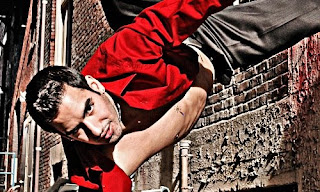
Learn how to apply this abstract photo effect with Photoshop CS3. Your photos will have a high impact look and stronger focus.
High Clarity Photoshop Tutorial

Step 1

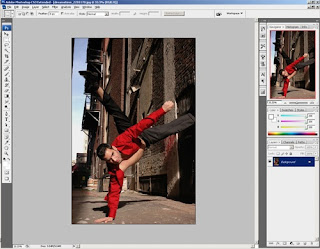
Open an image into Photoshop. This effect works best for portraits rather than landscapes.
Step 2
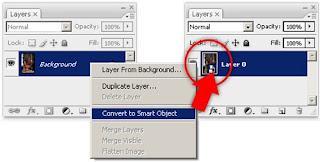
First, to practice non-destructive editing, we'll convert the layer to a Smart Object. Doing this will allow us to use Smart Filters that let you change the filter settings at any time.
Step 3
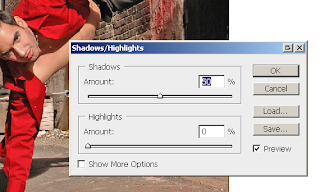
Choose image > Adjustments > Shadows/Highlights. Adjust the Shadows slider to about 50% so that the shadows are more visible.
Step 4
Now we are going to add a harsh lighting photo effect. In the Layers palette, click on the image button then choose Black & White.
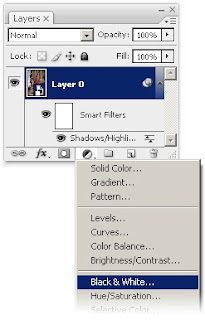
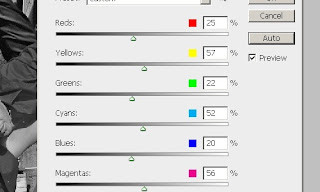
In the Black & White settings, click on Auto then click OK.
Step 5
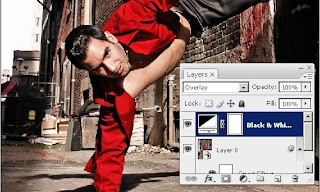
Change the blending mode of the Black & White adjustment layer to Overlay. You should now get a high-contrast photo effect.
Step 6
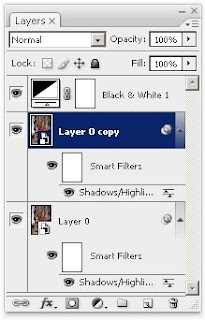
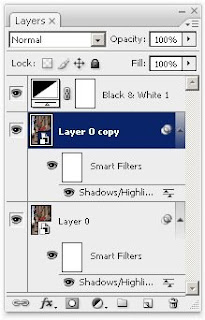
Duplicate Layer 0. To do this, select Layer 0 then press Ctrl+J or choose Layer > Duplicate Layer.
Step 7
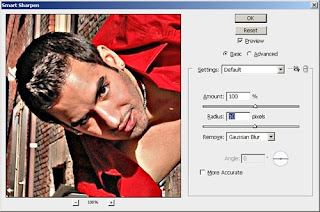
Select the new layer (Layer 0 copy) then choose Filter > Sharpen > Smart Sharpen. With the Smart Sharpen tool, we'll increase the local contrast to make the edges look very sharp. Set the Amount to 100% then adjust the Radius setting until you start to see very slight halos around the edges. Read our Local Contrast Photoshop tutorial for more information about this technique.
This is what the image looks like after increasing the local contrast with the Smart Sharpen tool.
Step 8
Add a blank layer mask to the current layer. To do this, choose Layer > Layer Mask > Hide All.
High Clarity Photoshop Tutorial

Step 9

First, press D to reset the foreground and background colors to black and white. Then, select the brush tool and paint in the layer mask over the subject. This can be a person, foreground object, or anything that you want to apply the Smart Sharpen filter effect to. If you want to erase any areas, use the eraser tool. Try to be precise with the painting because any inaccuracies will be visible later when we reuse the layer mask for another adjustment layer.
Step 10
Hold the Ctrl key and click on the layer mask thumbnail in the Layers palette. This should create a selection based on the layer mask.
Step 11
In the Brightness/Contrast settings, set the Brightness to -50 then click OK.
Final Results
Here's the final results of this photo effect. If you didn't do a good job painting the layer mask earlier, you can use the brush or eraser tools to refine the layer mask.
Before and after:

100% crop:

Sunday, March 16, 2008

Trendy Neutral Photo Effect

Make your photos interesting with this popular effect created from a combination of three photo effects. In this Photoshop tutorial, you'll learn how to create common photo effects that can be combined to simulate the trendy effect many photographers use on their photos.

Trendy Neutral Photo Effect Photoshop Tutorial

Step 1: Open an image into Photoshop

Open a photo into Photoshop. This photo should not have any strong photo effect applied.

Step 2: Add a neutral color effect

First, we'll add a neutral color effect. To do this, we'll need to create a new layer with a grayscale version of the image as the layers content. Instead of duplicating the layer and desaturating it, we'll be using adjustment layers instead. Adjustment layers are non-destructive, editable anytime, and they keep the Photoshop file size small.

In the Layers palette, click on the new adjustment layer button and choose Black & White. The Black and White option is only available in Photoshop CS3. If you are using Photoshop CS2 or older, choose Hue/Saturation instead.

In the Black and White tool, adjust the settings to get the desired black and white effect you like. If you're using Photoshop CS2 or older and chose the Hue/Saturation tool instead, you can create a black and white image with the exact same options and results as the Black and White tool. Simply choose the color that you would like to edit and adjust the lightness. For example, if you want the reds to be brighter, choose "Reds" from the edit drop down menu and increase the lightness.


Change the blending mode of the new adjustment layer to Overlay. If you don't like the results, double-click on the layer icon to edit the settings again.

Step 3: Add a grain texture

Now we're going to add a little artistic grain to the image. This is optional; you may skip this part if you don't want to add any grain to your image. First, create a new layer and name this layer "Grain".

With the Grain layer selected, press Ctrl+F5 or choose Edit > Fill. In the Fill options, set the contents to 50% Gray and click OK. This will fill the layer with a 50% gray. We're using 50% gray as the base color because it appears transparent when used with certain blending modes.

Now we'll add some noise. Choose Filter > Noise > Add Noise. Use the settings below.

The noise looks too sharp so we'll add a slight blur. Choose Filter > Blur > Gaussian Blur and use the settings below.

Change the blending mode of the Grain layer to Soft Light.

Step 3: Create an organic vignette

Finally, we'll add the last layer. This layer will contain a organic vignette that will increase focus to the subject. Begin by creating a new layer. Name this new layer Vignette.
Select the lasso tool from the toolbar and create a round selection around the subject.

Choose Select > Modify > Feather. This will soften the edge of the selection. Input a radius setting to use. A larger radius will create softer edge. Depending on the dimension of your image, this setting will vary. I used a 250 pixels setting, which is the highest, for a 4992 x 3319 pixels image. If you enter in a radius that is too small or large, press Ctrl+Z to undo and try the Feather Selection tool again. This step may take several tries.
Create an inverse of the selection by pressing Shift+Ctrl+I or choosing Select > Invert. Now fill the selection with black and press Ctrl+D to deselect the selection.
To finish this tutorial, reduce the opacity of the Vignette layer.

Final Results

Sample PSD
Download this free PSD (Photoshop Document) to view the final results with the layers.
trendy-neutral-photo-effect.psd

Tuesday, February 5, 2008

Foreground Lighting

mprove your portraits with this easy and effective foreground lighting effect. In this Photoshop tutorial, you will learn how to darken the background to create a less-busy background. This effect may seem simple, but it works exceptionally well for portraits with a busy background.


Step 1: Open a portrait photo

First, open an image of a portrait with a busy background that you would like to apply this effect to. This effect will make the background darker to add focus to the subject.

Step 2: Add an adjustment layer

Now we'll need to add an adjustment layer that will make the image darker. In the Layers palette, click on the New Adjustment Layer button.
There are many ways to darken the image, but the simplist methods are shown below. We don't recommend using the Brightness/Contrast tool in Photoshop CS2 or older because they produce poor results. The Brightness/Contrast tool has been greatly improved in Photoshop CS3, but if you're an experienced Photoshop user and you want more control, we recommend using the Levels or Curves tool instead.
If you picked the Brightness/Contrast adjustment layer, simply reduce the brightness and increase the contrast. As you adjust the settings, focus on the background instead of the subject because this effect will only be used to darken the background.

If you picked the Levels adjustment layer instead of the Brightness/Contrast adjustment layer, start by moving the middle input slider towards the right. You may play around with the other input sliders and adjust the output levels to get the effect that you like. Remember to focus on the background instead of the foreground because this layer will only be used to darken the background.
Step 3: Mask the adjustment layer

The adjustment layer darkened the entire image. Now we have to mask out the areas that we don't want to be darkened - the subject/person. In the Layers palette, you should now see a new adjustment layer with a layer mask. Make sure that the layer mask is selected by clicking on the layer mask thumbnail. It should have a white border to indicated that it is activated.

Now select the Eraser tool from the toolbar. Also, make sure that your foreground and background colors are set to the default. Simply press the D key on your keyboard to reset the foreground and background colors to the default colors.
Once you have the Eraser tool selected, the option bar near the top will show you the settings you can set for the Eraser tool. Set the Opacity to 50% and adjust the brush size and hardness.

Using the Eraser tool, erase the foreground to make it brighter. If you make a mistake, you can switch back to the brush tool to paint back the areas that you want to reverse.
Here's what my image looks like after erasing the foreground.

Erase the foreground or just the subject again. This time, I ony erased the subject to keep the rock a little darker.

In the option bar, set the Opacity of the brush to 100%.

We'll apply one more layer of erasing to the layer mask. This time, I only erased the face. In the image below, you can see the areas that I erased. If you look closely, you can see a halo around the subjects head. This is because I was being sloppy and my brush hardness was too soft. I can fix this by switching back to the brush tool and using a stronger hardness (50%) to paint back the background.

Final Results


Dimming the background is a simple, but truely effective way to hide busy backgrounds and increase focus to the subject.

Friday, January 18, 2008

Remove Freckles

Reduce slight freckles naturally without using the Healing Brush. In this Photoshop tutorial, you'll learn how to subtract freckles using a layer. This process provides the most natural results for light-brown freckles (ephelides) but will not work for dark freckles.

Before and After Remove Freckles Photoshop Tutorial


Step 1:Open an image into Photoshop

Open the photo with the freckles you would like to remove. To open a file, open the File menu and select Open. Then, browse for the photo and click OK. This tutorial only works for light-brown freckles (ephelides); not dark freckles (lentigines).

Step 2:Convert to CMYK color

To subtract the freckles, we need to find a channel that shows the most freckles. This is usually shown in the Yellow channel but to access that channel, we need to convert the image mode to CMYK. Convert the image to CMYK color by opening the Image> Mode menu and selecting CMYK Color. When you convert to CMYK color, the colors will shift and look different, but we'll show you a way to get around this issue later.


Step 3:Select the yellow channel

In the Channels pallet, click on the yellow channel to view it. You can see that the yellow channel shows a lot of freckles and this is what we're looking for.

Step 4:Copy the yellow channel

Now we're going to create a new layer with the yellow channel in it. Press Ctrl+A or open the Select menu and click All. This will create a selection of the canvas. With the selection created, Press Ctrl+C or open the Edit menu and choose Copy.

Step 5:Convert the image back to RGB color

We're done taking the yellow channel from the CMYK mode and we need to switch back to RGB color. But all this color conversion means that there will be a lot of color shifts. Earlier we told you that we'll show you how to get around this issue and here it is. Simly go into the History pallet and click on the first step to revert the image to the way it was.

Step 6: Paste the contents as a layer

Press Ctrl+V or open the Edit menu and click Paste. You should now have a new layer with the yellow channel we copied earlier.

Step 7:Invert the layer

To subtract the freckles, we need to invert the layer so that it shows the opposite of the layer below. To invert the layer, press Ctrl+I or open the Image> Adjustments menu and select Invert.

Step 8: Blend the layer

Now that we have the right formula to subtract the freckles from, change the blending mode to Overlay and adjust the opacity so that the freckles disappear. You should see the effect of this subtraction technique real time as you adjust the opacity slider.

Once you're done, you may notice that the contrast for the entire image has changed. For the image used in this tutorial, the result is pleasing and makes the overall image look better. If you are happy with the results, you've completed the effect. However, if you don't like the effect that it creates, follow the next steps to learn how to make this effect only visible on the skin.


Step 9: Add a layer mask

To manually specify where the freckle removal effect should appear, we'll be using a layer mask. Add a layer mask by opening the Layer> Layer Mask> Hide All. This should create a black layer mask that makes the entire layer invisible.

Step 10: Paint over the freckles

First, make sure that you have the layer mask selected by clicking on the thumbnail of the layer mask. It should have a white outline around it to indicate that it is activated. Select white as the foreground color and use the Brush tool with a soft edged brush to paint the affected areas. This will feel like an eraser tool for the freckles because the area you paint is the area that the freckles disappear.


Final Results